

Share Article
How to setup auto renewal for Azure Apps certificates
Azure App Service is a serverless offering from Microsoft that enables customers to quickly deploy web-based applications. These applications can be secured with a public certificate which can be provided from an TRUSTZONE Managed SSL account via the Azure Key Vault integration.

Auto renewal for Azure Apps
Azure App Service is a serverless offering from Microsoft that enables customers to quickly deploy web-based applications. These applications can be secured with a public certificate which can be provided from an TRUSTZONE Managed SSL account via the Azure Key Vault integration.
Prerequisites
- An TRUSTZONE Managed SSL account
- An Azure Key Vault integrated with the MSSL account
See this link for instructions on how to set up the integration: https://trustzone.com/knowledge-base/managed-ssl-integration-with-azure-key-vault/
You can use the instructions on this page to an Azure Web app or Function with automatic certificate renewal
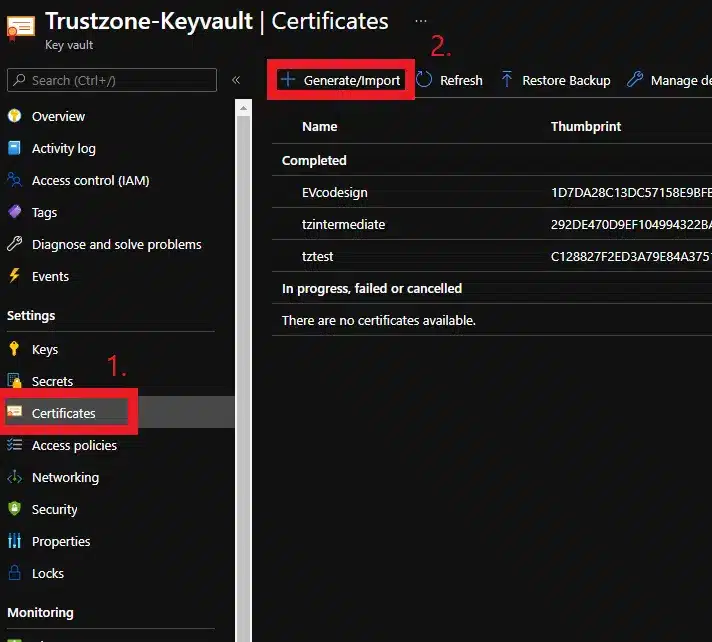
- First you need to order your certificate by going to your Key Vault, selecting “Certificates”, and clicking “+Generate/Import”
- “Type of Certificate Authority (CA)” should be set to “Certificate issued by an Integrated CA” and select the TRUSTZONE integration. Set up the auto-renewal with “Lifetime Action Type”.
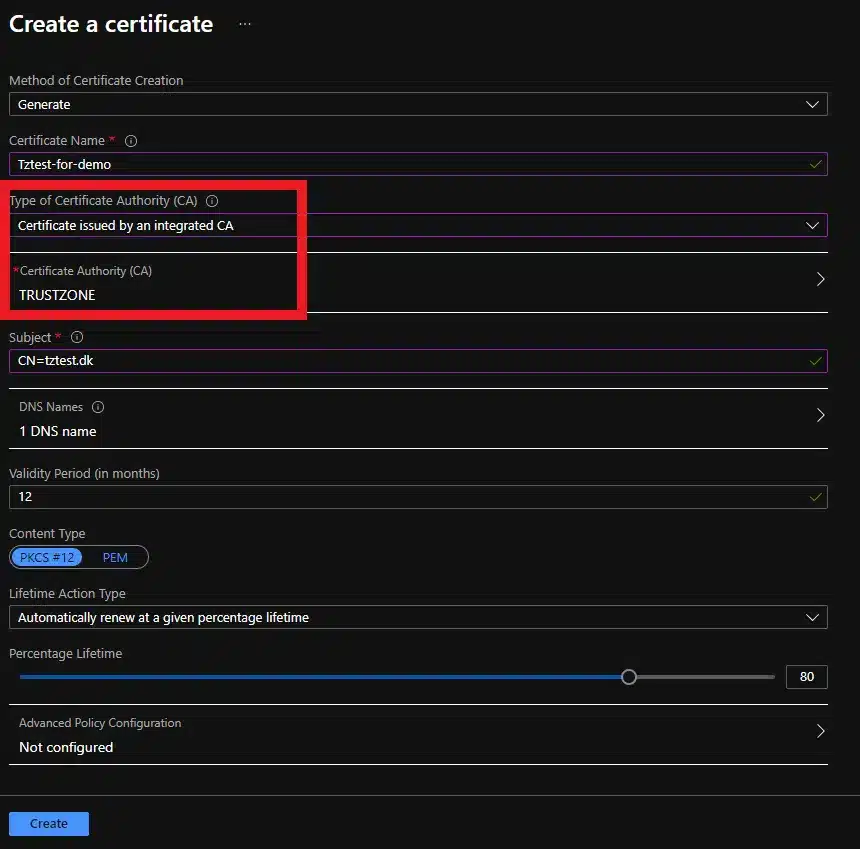
- Then click “Create” to order the certificate. It will show up as “In progress” in the Key Vault and after 2-3 minutes should have the status “Completed”
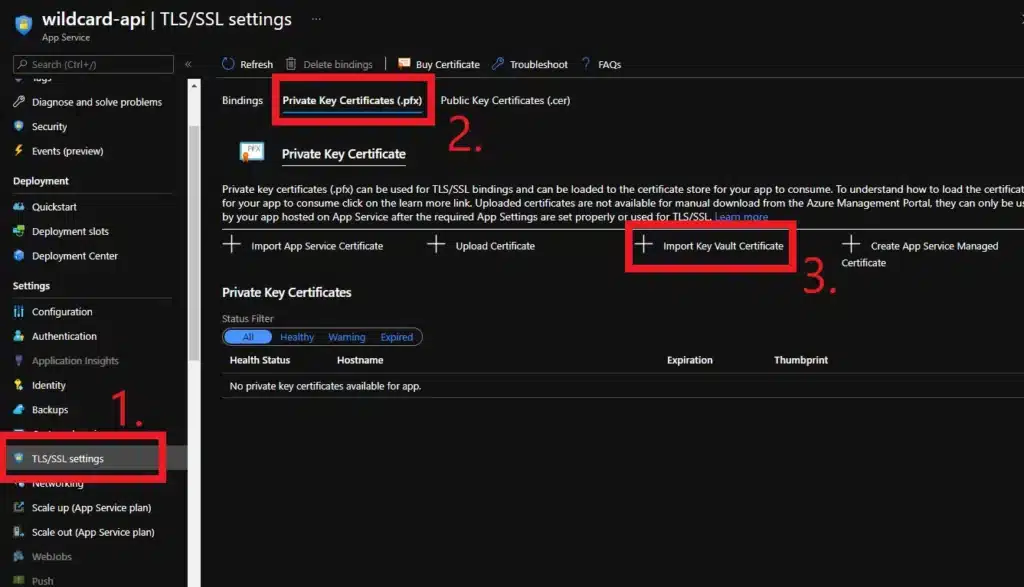
- Go to you Web App or Function and select “TLS/SSL settings”. The click on the “Private Key Certificates (.pfx) tab and select “+ Import Key Vault Certificate”.
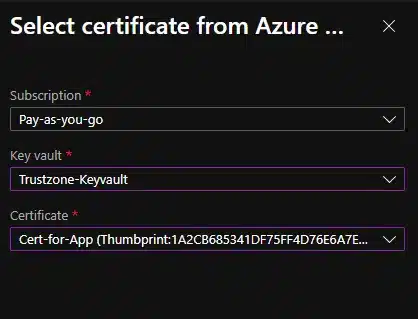
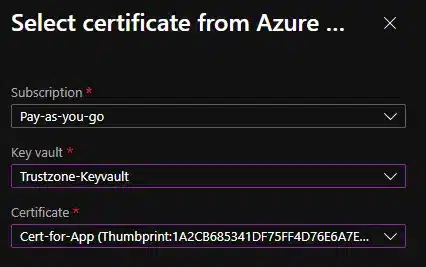
- Select the certificate from the Key Vault.
- To use the certificate you will need your domain added as a custom domain and a binding. To make the binding, please select the “Bindings” tab in the TLS/SSL settings menu and then select the “+Add TLS/SSL bindings”. Now select your domain and certificate. If you wish to have several certificates in linked to your App you should use “SNI SSL” if you are only using a single certificate you can select IP based SSL .
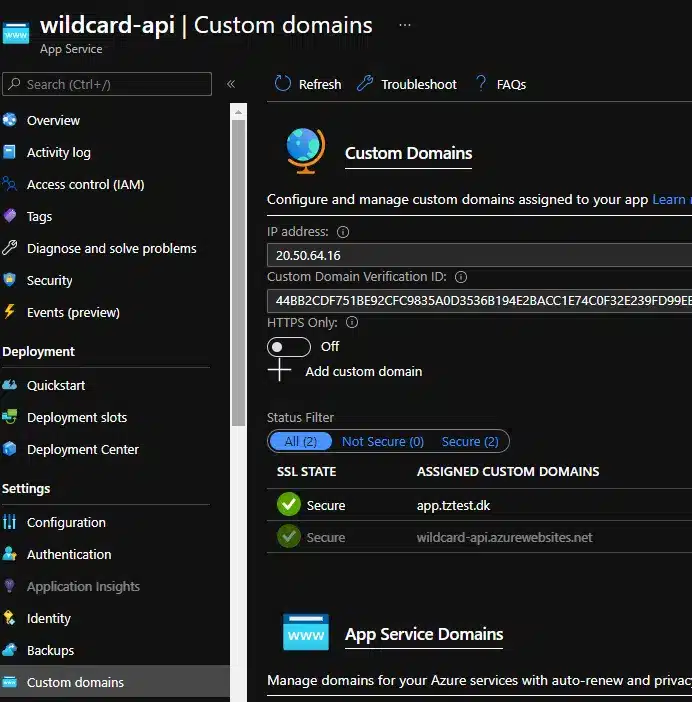
- The certificate should now be in use on your Azure App. You can check this by going to “Custom Domains” in the menu blade.

Jon Tittmann
Vetting/Support Team Lead & OpEx
Jon has been an integral part of TRUSTZONE for the past six years, during which he has acquired substantial expertise in the cyber security field. As the team leader for our support team, he possesses a profound understanding of the sector, enabling him to resolve even the most complex challenges within the certificate industry effectively.
